




A Practical Plan for Kids’ Screen Eyes
- What digital eye strain looks like in children
- Set up the screen environment at home
- A schedule that protects the eyes
- Blinking, dryness, and simple comfort steps
- Schoolwork, devices, and family rules that stick
- When to seek an eye exam and what to ask
What digital eye strain looks like in children
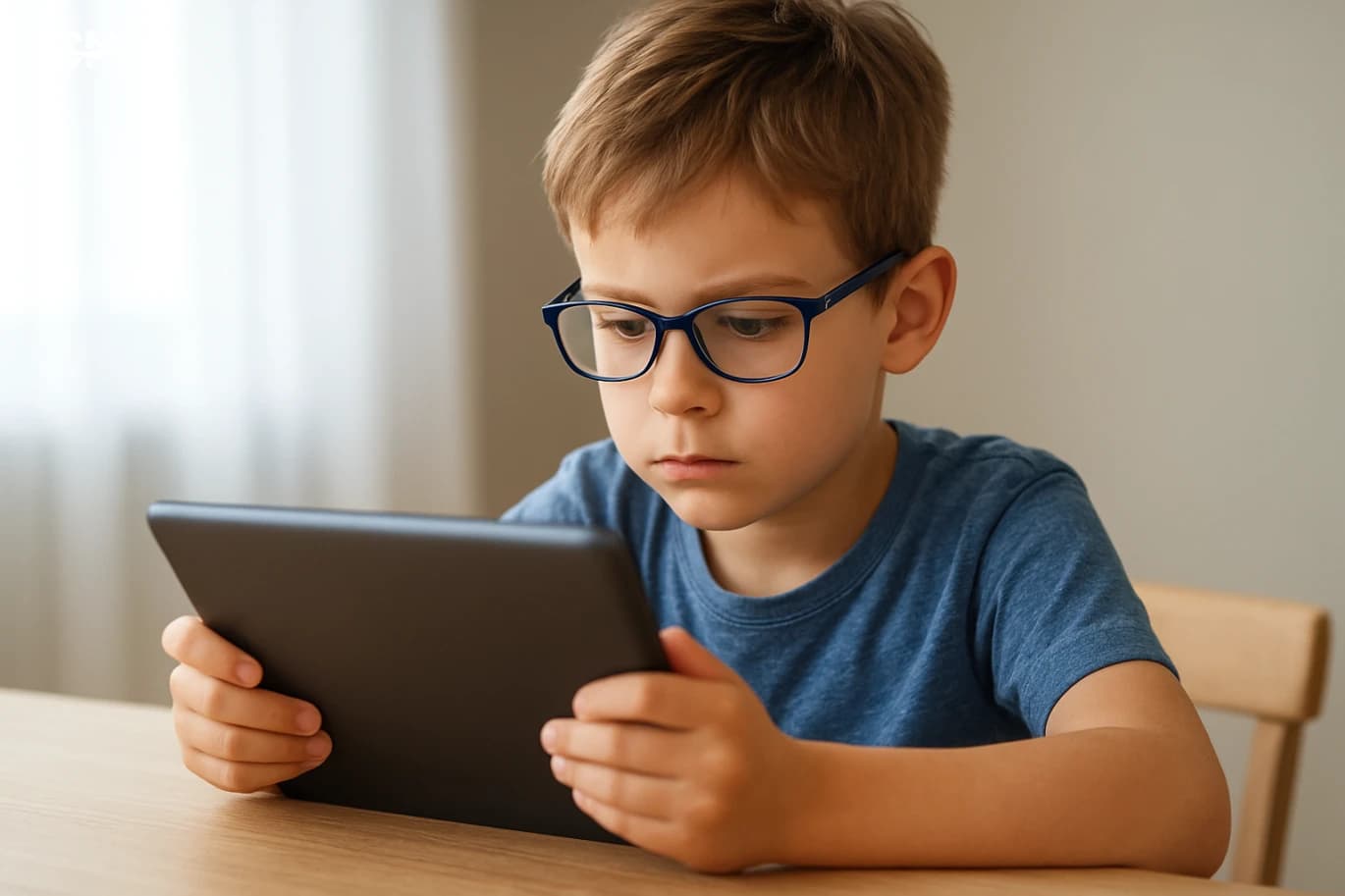
Digital eye strain in children is usually a mix of tired focusing muscles, reduced blinking, and long periods of close-up viewing. Parents often notice frequent eye rubbing, squinting, headaches after homework on a tablet, or a child who avoids reading right after screen time. Some children complain that letters look blurry for a few minutes when they look up from a device, or they say their eyes “burn” or feel dry. It helps to separate eye strain from other issues. If symptoms happen mainly after screens and improve with breaks, the trigger is likely viewing habits. If a child consistently sits very close to the TV, struggles to see the board at school, or has headaches even on low-screen days, an uncorrected vision problem may be involved. Also watch for light sensitivity, persistent redness, or one eye turning in or out; these are not typical “just screen fatigue” signs and should be assessed by an eye-care professional. A useful approach is to keep a simple two-week log: when screens are used, for how long, and what symptoms appear. This gives you a clear baseline and makes it easier to see whether changes like better lighting or shorter sessions are actually working.
Set up the screen environment at home
A child’s eyes work harder when the viewing setup is poor. Start with distance and height. For tablets and laptops, aim for the screen to be slightly below eye level so the eyelids cover more of the eye surface, which can reduce dryness. A practical distance is about an arm’s length for a laptop and at least 35–45 cm for a tablet, adjusted so the child is not leaning forward. Lighting matters as much as the device. Avoid using screens in a dark room with a bright display; the contrast can increase discomfort. Use soft ambient lighting and position the screen to reduce reflections from windows or overhead lights. If glare is visible, change the angle, close a curtain, or move the lamp rather than increasing brightness to maximum. Adjust display settings for comfort and consistency. Keep brightness similar to the room’s brightness, increase text size so the child is not squinting, and use high-contrast text on a neutral background for reading tasks. Many families enable a warm color mode in the evening; it can make the screen feel less harsh, but it does not replace breaks or good sleep routines. Finally, support posture. A chair that lets feet rest flat and a surface that keeps elbows near a 90-degree angle reduces neck and shoulder tension that can be mistaken for “eye headaches.” If a child uses a tablet for homework, a simple stand and an external keyboard can prevent the face-from-screen posture that drives fatigue.
A schedule that protects the eyes
The most effective protection is not a single trick but a routine that limits continuous close-up work. A widely used method is the 20-20-20 rule: every 20 minutes, look at something about 20 feet away for 20 seconds. For younger children who cannot track time, use natural break points: after one level in a game, after two pages of reading, or when a video ends. Build screen time into blocks with a clear start and stop. For example, homework on a device can be split into two 25-minute sessions with a 5-minute movement break in between. During the break, encourage looking out a window, walking to get water, or doing a quick stretch—activities that shift focus to distance and restore blinking. Balance near work with outdoor time. Regular time outside gives the eyes a chance to focus at varying distances and is associated in many studies with healthier visual development. You do not need a special sport; a walk, playground time, or helping with an outdoor errand can provide the distance viewing that screens lack. Evening routines deserve extra attention. Late screen use can push bedtime later and reduce sleep quality, which can make eyes feel more irritated the next day. Set a household rule for a screen-free buffer before sleep, and keep charging stations outside bedrooms when possible to reduce “one more video” habits.
Blinking, dryness, and simple comfort steps
Children blink less when they concentrate on screens, which can dry the eye surface and create a gritty feeling. A simple reminder helps: “blink and breathe” at the start of each session. Some families place a small sticky note near the screen as a cue, then remove it once the habit forms. Hydration and room air quality also matter. Dry indoor air from air conditioning can worsen symptoms, especially in hot climates. If the room feels dry, consider a humidifier and avoid directing vents toward the child’s face. Encourage regular water intake, particularly during long homework periods. If a child wears glasses, make sure the prescription is current and the lenses are clean. Smudges increase glare and make the eyes work harder. For children who have been prescribed glasses for near work or astigmatism, skipping them during screen use can increase strain. Avoid self-prescribing eye drops without guidance. Artificial tears can be helpful for some children, but it is best to discuss persistent dryness with an eye-care professional, especially if there is redness, discharge, or allergy symptoms. Comfort steps should reduce symptoms, not mask a problem that needs evaluation.
Schoolwork, devices, and family rules that stick
Many families struggle because screens are tied to school requirements. The goal is not to eliminate devices but to manage how they are used. Start by separating “learning screens” from “leisure screens.” If homework requires a laptop, keep entertainment on a different device or at a different time of day so the total exposure is easier to track. Create a simple household policy that is specific and measurable. Examples include: screens only at the table or desk (not on the couch), no screens during meals, and a maximum number of entertainment minutes on school nights. Make the rules visible on paper and review them weekly with the child, adjusting based on school load. Use device tools sparingly but effectively. App timers and downtime settings can prevent accidental overuse, but they work best when paired with a plan for what the child will do instead. Prepare a short list of alternatives: a board game, drawing, a short walk, or helping with a household task. Coordinate with teachers when possible. If a child reports headaches or blurred vision after digital assignments, ask whether some tasks can be printed or completed offline. Many schools can provide flexibility, especially when the request is framed as a health and productivity issue rather than a preference.
When to seek an eye exam and what to ask
Routine eye exams are important, but certain signs mean you should schedule a visit sooner. Seek professional advice if headaches are frequent, if blurred vision persists after breaks, if the child squints often, or if school performance drops due to visual discomfort. Also book an exam if one eye appears to drift, if there is persistent redness, or if the child complains of double vision. During the appointment, describe the child’s screen habits and your symptom log. Ask whether the child has refractive errors that show up mainly during near work, whether there are focusing or eye-teaming issues, and whether the current prescription is optimized for school tasks. If glasses are prescribed, ask when they should be worn and how to monitor whether they reduce symptoms. If the clinician discusses dry eye or allergies, ask about practical home steps and what warning signs would require follow-up. The best outcome is a clear plan: how often to take breaks, whether any treatment is needed, and when to recheck. With a structured routine at home and the right clinical guidance when necessary, most families can reduce discomfort without turning screens into a daily conflict.