



Practical Guide to Password Managers in 2026
- Why password managers matter now
- How modern managers work
- Choosing the right manager
- Setup checklist for a safer vault
- Passkeys and the future of sign-in
- Common mistakes and how to avoid them
Why password managers matter now
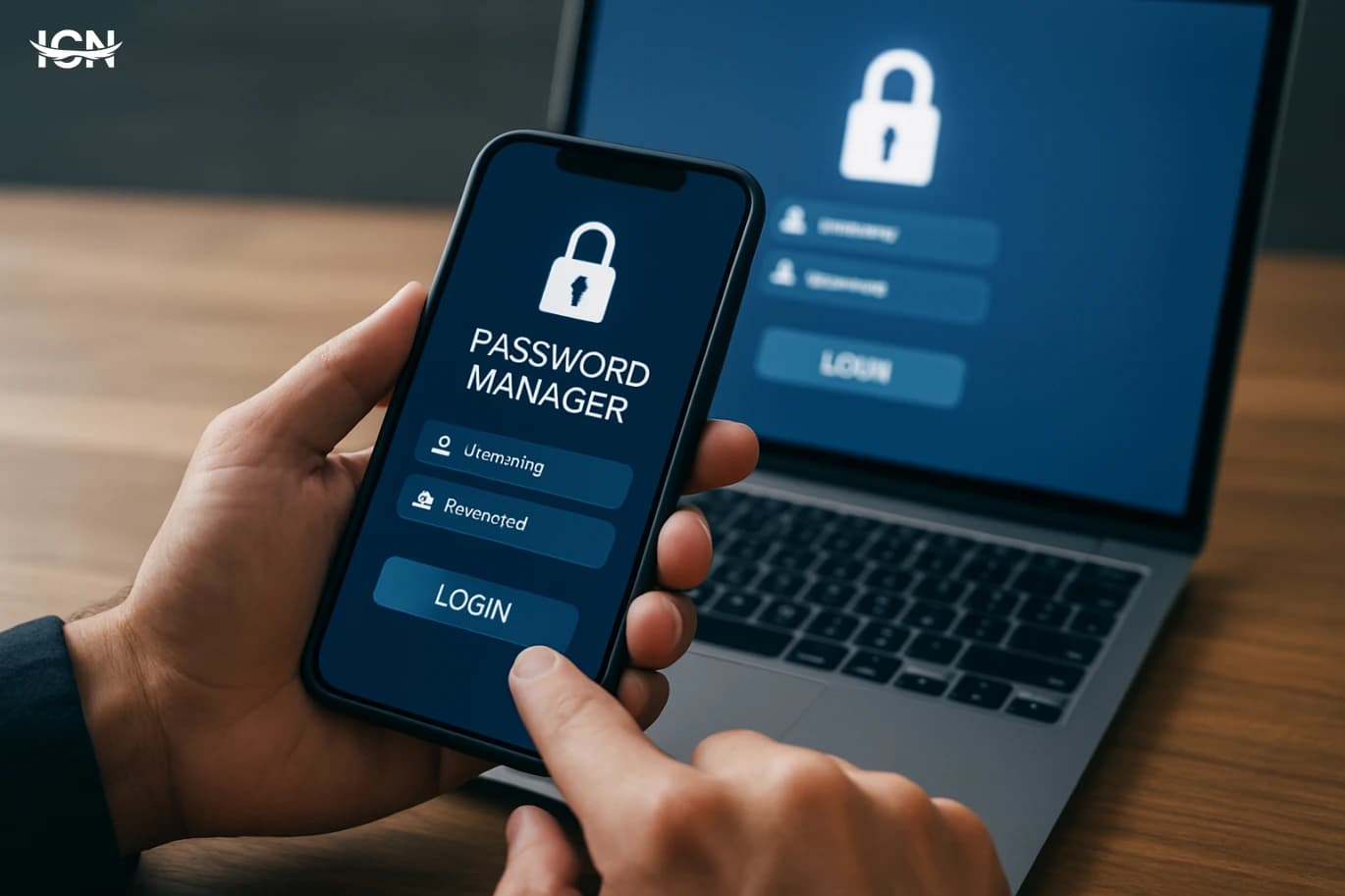
Password reuse is still one of the most common ways accounts get compromised, and it has become harder to avoid as people juggle work apps, banking, shopping, and subscriptions across multiple devices. A password manager reduces that risk by generating unique, high-entropy passwords and storing them in an encrypted vault that you unlock with one strong master password or device-based authentication. In 2026, the value is not only stronger passwords; it is also speed and consistency. Autofill reduces typing on mobile, and built-in password health checks flag weak or reused credentials. Many managers now include secure notes for recovery codes, identity documents, and software licenses, which helps keep sensitive data out of email drafts and screenshots. The goal of this guide is to help you choose and configure a manager in a way that fits real daily routines, not just a checklist of features.
How modern managers work
Most password managers rely on end-to-end encryption: your vault is encrypted on your device before it syncs, and the provider cannot read its contents. The practical difference between products often shows up in how they handle device onboarding, recovery, and browser integration. Look for support across major browsers, reliable autofill on iOS and Android, and a clear security model that explains what happens when you forget your master password. Some services offer account recovery options such as emergency access contacts, recovery keys, or device-based recovery, while others intentionally avoid recovery to reduce attack surface. Another key component is the password generator. A good generator lets you control length, character sets, and passphrase style, and it should default to long passwords rather than the minimum allowed by older websites. Finally, pay attention to how the manager stores and labels items: logins, passkeys, payment cards, addresses, and secure notes. Good organization reduces mistakes, especially when you manage multiple accounts on the same domain for work and personal use.
Choosing the right manager
Start with your real constraints: devices, browsers, and whether you need a family or team plan. If you use Windows at work and an iPhone personally, cross-platform reliability matters more than niche features. For families, prioritize shared vaults with granular permissions, so you can share streaming logins or home Wi‑Fi details without exposing everything. For small teams, look for admin controls, offboarding workflows, and audit logs that show when credentials were changed. Evaluate security signals that are easy to verify: independent security audits, a published vulnerability disclosure program, and a track record of timely updates. Also check usability details that affect adoption: fast search, clean item templates, and a frictionless way to save new logins. Pricing should be judged against the cost of account recovery and downtime; a modest subscription can be cheaper than dealing with locked accounts. Finally, consider data portability. Export options and clear import tools make it easier to switch later, which reduces the risk of getting stuck with a tool you outgrow.
Setup checklist for a safer vault
A strong setup is mostly about a few decisions made early. First, create a master password that is long and memorable, ideally a passphrase with multiple unrelated words, and never reuse it anywhere else. Enable multi-factor authentication for the manager account, preferably using an authenticator app or hardware key rather than SMS. Turn on automatic lock with a short timeout on mobile and laptops, and require device biometrics where available. Next, import existing passwords carefully. After import, run the built-in security report to identify reused or weak passwords, then prioritize changing the most sensitive accounts first: email, banking, cloud storage, and social accounts tied to recovery. Store recovery codes in the vault and keep an offline copy in a secure physical location, such as a locked drawer, in case you lose access to your devices. Finally, review autofill settings. Restrict autofill to trusted domains, and disable automatic filling on pages that look suspicious. These steps take less than an hour but dramatically reduce the chance that a single mistake cascades across your digital life.
Passkeys and the future of sign-in
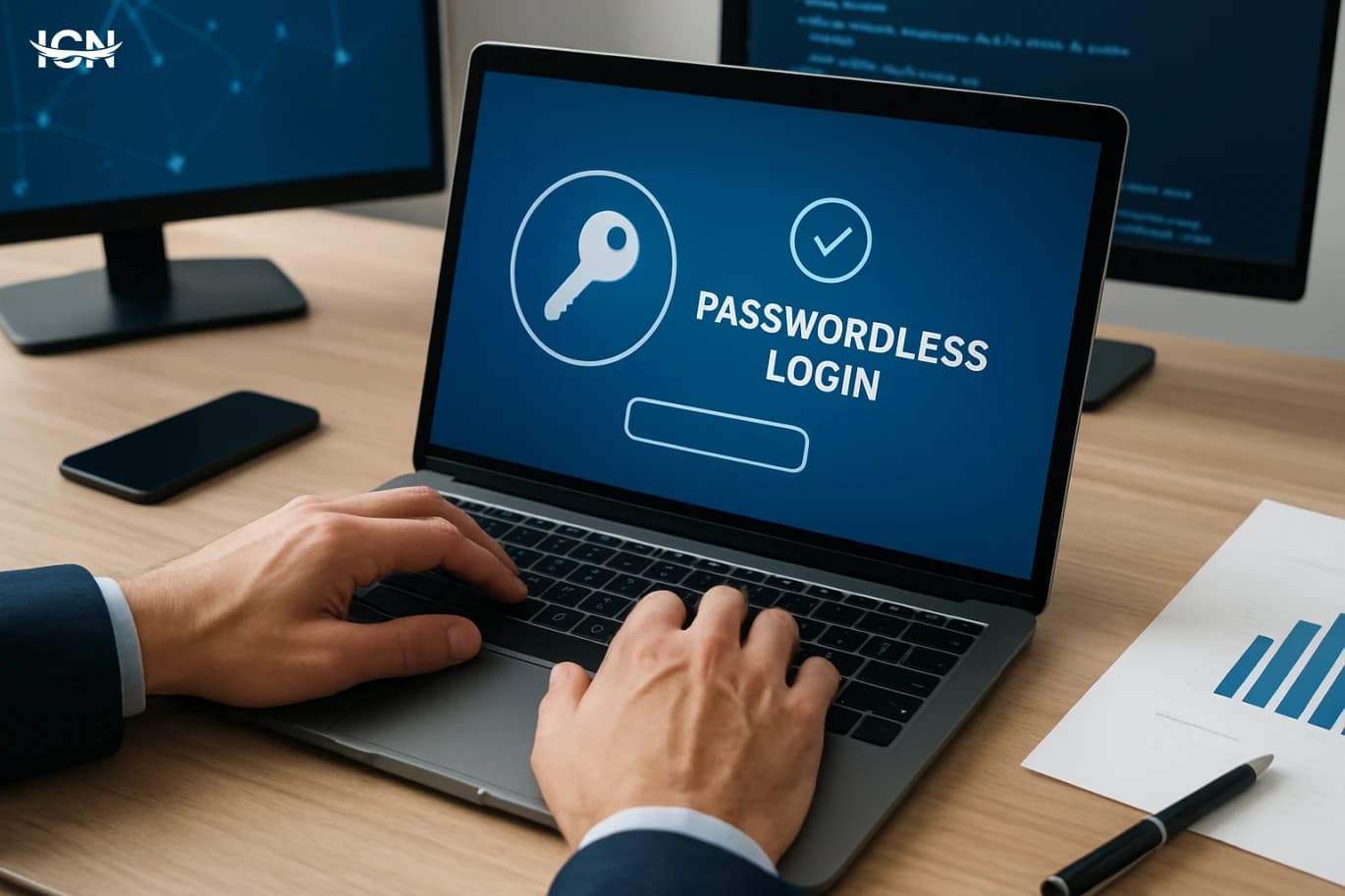
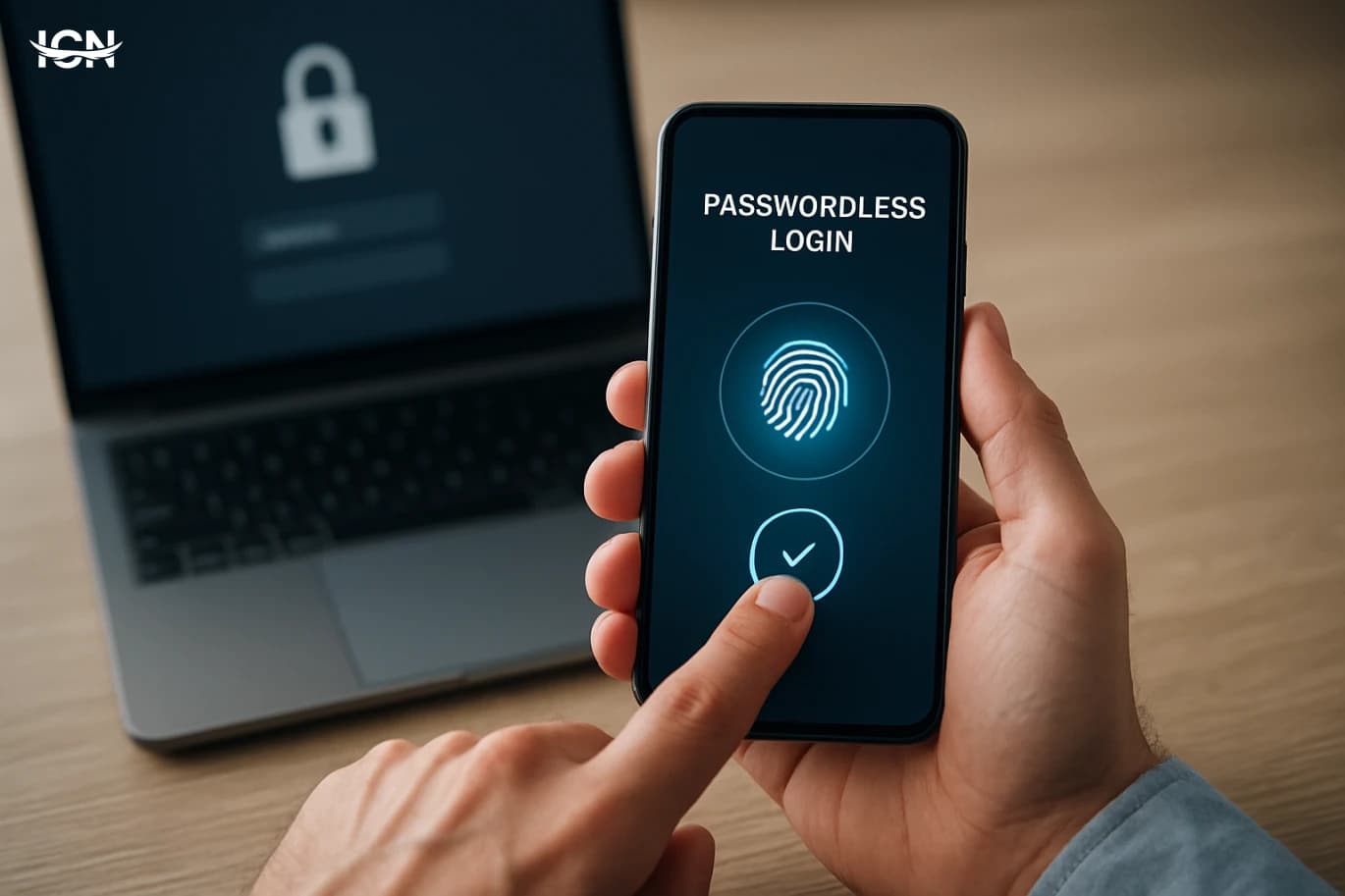
Passkeys are becoming a mainstream alternative to passwords, and many password managers now store and sync them alongside traditional logins. A passkey typically uses public-key cryptography and is tied to your device authentication, such as biometrics or a device PIN, which reduces exposure to phishing and credential stuffing. In practice, adoption is uneven: some services support passkeys fully, others offer them only on certain platforms, and some still require a password as a fallback. A practical approach in 2026 is hybrid. Use passkeys where they are supported for high-value accounts, keep strong unique passwords for the rest, and maintain multi-factor authentication as an additional layer when available. Also pay attention to portability: understand whether your passkeys are stored only on a device, synced through an ecosystem, or managed by your password manager. The best outcome is convenience without lock-in, so you can change phones or platforms without losing access.
Common mistakes and how to avoid them
The most common mistake is treating the manager as a storage box rather than a system. If you keep old weak passwords and never rotate them, you miss most of the benefit. Schedule a monthly 15-minute review to change a few high-risk passwords and clean up duplicates. Another mistake is ignoring account recovery. If you do not store recovery codes or set up emergency access, a lost phone can become a long outage. Configure recovery options immediately and test them in a controlled way. People also get tripped up by multiple accounts on the same site; use clear naming conventions like “Work Google” and “Personal Google,” and add notes for required login steps. Finally, be cautious with browser extensions on shared computers. If you must use a shared device, use a private browsing session, avoid saving the vault unlock state, and lock the manager when you step away. A password manager is most effective when it is consistently used with disciplined habits, not when it is installed and forgotten.