
App Logo

Download Our App

Shop your way

logologo
Image

Practical Guide to Password Managers in 2026
03/14/2026By: ICN Writer
Practical Guide to Password Managers in 2026

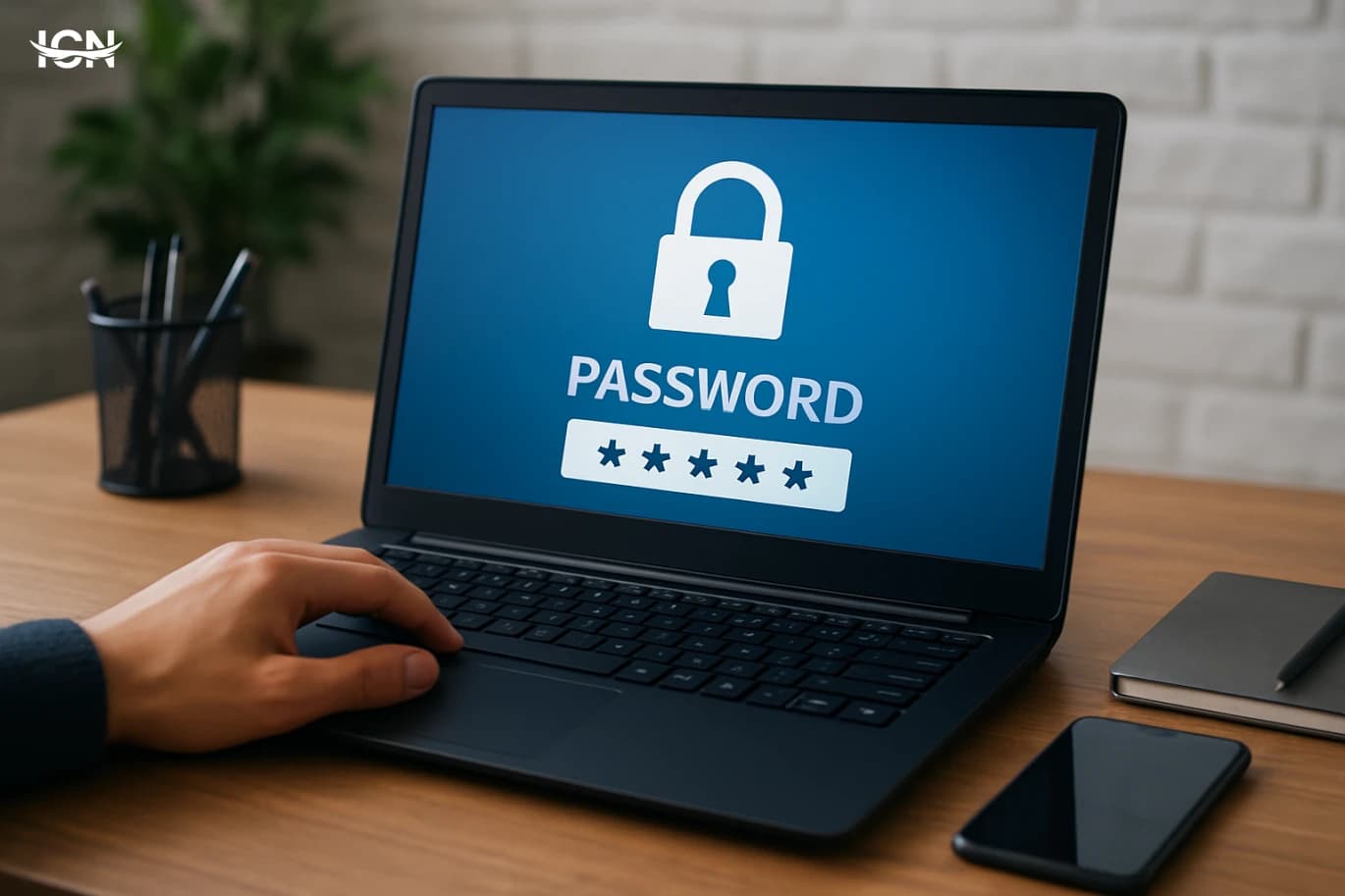
Why password managers matter now

Account takeovers increasingly start with reused or weak passwords, and most people still juggle dozens of logins across work and personal services. A password manager reduces that risk by generating unique, high-entropy passwords and storing them in an encrypted vault protected by one strong master password or device-based unlock. It also speeds up daily use: autofill on websites and apps, secure storage for recovery codes, and quick password changes when a service reports a breach. In 2026, the practical value is bigger because the average digital footprint is larger: banking, government portals, streaming, shopping, healthcare, and multiple workplace tools. A manager also helps you spot risky habits through built-in audits that flag reused passwords, weak entries, and accounts missing multi-factor authentication. For families and small teams, shared vaults can replace insecure practices like sending passwords in messages or keeping them in spreadsheets.

How they work in plain terms

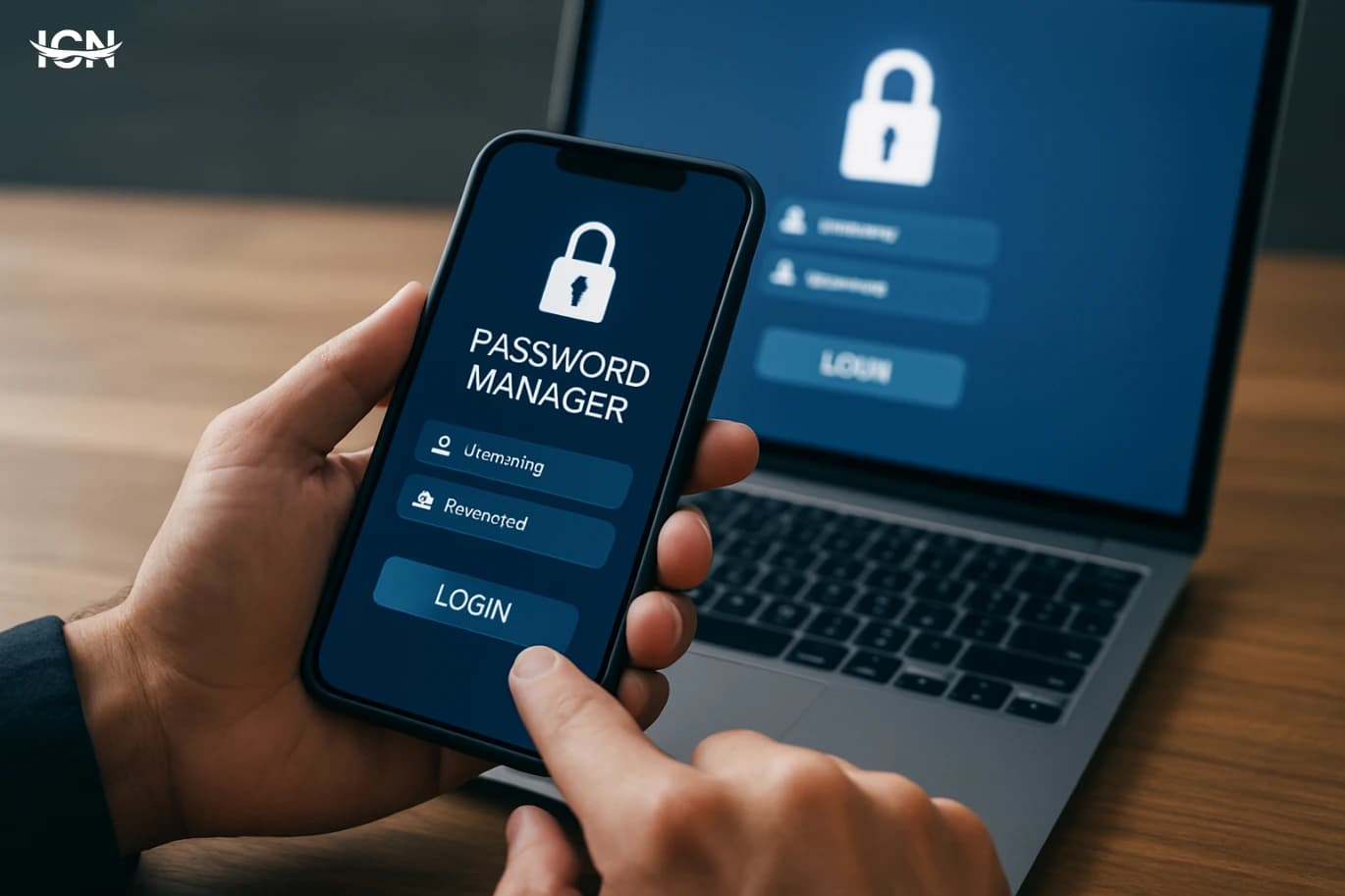
A password manager is essentially an encrypted database. You store logins, notes, and sometimes payment details inside a vault. The vault is encrypted on your device and, for cloud-based services, synced in encrypted form to the provider’s servers so you can access it on multiple devices. The provider should not be able to read your vault contents; the encryption keys are derived from your master password and device secrets. Most modern managers offer browser extensions and mobile autofill. When you visit a site, the extension matches the domain and offers the correct login. Good products also support passkeys, which replace passwords with cryptographic credentials stored on your device and synced securely. Even if you still use passwords, a manager can store your two-factor backup codes and generate time-based one-time passwords (TOTP) so you don’t need a separate authenticator app. The key practical point: your security depends on protecting the master access method. That means a long, memorable master password, device lock enabled, and recovery options configured before you need them.

Choosing the right manager

Start with your usage pattern. If you use multiple devices and platforms, prioritize reliable cross-platform apps and smooth sync. If you work in a small business, look for team features such as shared vaults with role-based access, activity logs, and offboarding controls. For families, check how sharing works and whether it supports emergency access. Then evaluate security and transparency. Look for end-to-end encryption, independent security audits, a clear incident history, and a published security model that explains how keys are derived and how data is protected. Prefer products that support hardware security keys for unlocking and that offer strong account protection for the manager itself. Also consider data portability: can you export your vault in a usable format, and is import from other managers straightforward? Finally, test the daily experience. Autofill accuracy, password generator options, and the ability to handle multiple accounts per site matter more than marketing claims. A good manager should make the secure choice the easiest choice, otherwise people revert to old habits.

Setup checklist for a safer vault

Begin with a strong master password: long, unique, and memorable. Avoid using personal phrases that could be guessed. Enable biometric unlock only if your device has a secure lock screen and you understand how recovery works. Turn on multi-factor authentication for the password manager account itself, ideally using a hardware security key or a well-protected authenticator method. Next, organize your vault from day one. Use folders or tags for banking, email, work, and subscriptions. Store recovery codes and security questions as notes, but treat them as sensitive data. Enable the built-in password health report and schedule a monthly review. When the tool flags reused passwords, change the most critical accounts first: email, financial services, and any account that can reset other passwords. Also configure emergency access. Many managers let you designate a trusted contact who can request access after a waiting period. This is practical for families and for sole proprietors who need a continuity plan. Finally, keep your apps and browser extensions updated and remove old extensions you no longer use, because the browser is a common weak point in everyday security.

Common mistakes and how to avoid them

The most common mistake is treating the password manager as a dumping ground without improving habits. If you import old passwords and never change them, you keep the same risk profile. Use the audit tool to prioritize changes and set a realistic target, such as updating five high-value accounts per week. Another mistake is ignoring domain matching warnings. If a manager doesn’t autofill, don’t force it by copying and pasting credentials into a lookalike site. Check the URL carefully and rely on the manager’s domain matching as a safety signal. Also avoid storing the master password in the same vault or in an unprotected note app. People also underestimate recovery planning. If you lose access to your master password and your recovery methods aren’t configured, you may permanently lose the vault. Set up recovery keys, emergency access, and a secure backup of critical recovery information. Finally, don’t confuse convenience with security: sharing passwords through screenshots or chat messages defeats the purpose. Use the manager’s built-in sharing features with proper permissions.

A 30-day adoption plan

Days 1–3: Install the manager on your primary devices, enable autofill, and set up multi-factor authentication for the manager account. Create a clean structure with a few folders or tags. Import existing passwords if needed, but don’t stop there. Days 4–10: Secure your email accounts first, because they control password resets elsewhere. Change passwords to unique generated ones, store recovery codes, and enable multi-factor authentication on each email provider. Then move to financial accounts and your main app store accounts. Days 11–20: Tackle your most-used services: messaging, shopping, streaming, and workplace tools. Replace reused passwords and delete old accounts you no longer need. Use the manager to generate new passwords and save them immediately, avoiding manual typing. Days 21–30: Review the audit report, fix remaining weak passwords, and set up emergency access. If your manager supports passkeys, start enabling them on services that offer them, beginning with email and major platforms. End the month by scheduling a recurring reminder to review password health and to update the manager and browser extensions. The goal is a stable routine where secure access is automatic, not a special project.
* All articles published on this blog are sourced from various websites and are provided for informational purposes only. They should not be considered as confirmed studies or accurate information. Please verify the information independently before relying on it.

Similar ARTICLES

Building a Personal Knowledge Hub with Modern Note Apps
Most people capture information in too many places: a phone notes app, browser bookmarks, chat messages, PDFs, and random documents. The result is predictable: you remember saving something, but you cannot find it when you need it. A personal knowledge hub is a deliberate system that brings your reading highlights, meeting notes, project decisions, and reference material into one searchable space. It is not just storage; it is a workflow that turns incoming information into usable knowledge. A good hub reduces time spent re-searching the web, re-reading emails, or asking the same questions in a team. It also improves consistency: the same template for meeting notes, the same place for project status, and the same tagging rules for research. Over time, the hub becomes a personal “operating manual” for how you work, what you decided, and what you learned. This section frames the goal: fewer tools, clearer structure, and faster retrieval.
Practical Password Managers for Everyday Security
Most people still reuse a handful of passwords across email, shopping, banking, and work tools. That habit turns one leaked password into a chain reaction, because attackers test the same credentials on multiple services. A password manager reduces that risk by generating unique, long passwords and storing them in an encrypted vault that you unlock with one strong master password. It also cuts down on “password fatigue,” the daily friction that leads to shortcuts like writing passwords in notes apps or using predictable patterns. The practical value is not only security; it is reliability. When you can fill credentials quickly on a phone, laptop, or shared family tablet, you are less likely to disable security features or avoid updates. Many managers also store passkeys, recovery codes, and secure notes, which matters when you enable multi-factor authentication and need backup options. For small teams, shared vaults can replace insecure spreadsheets and reduce the number of people who know the same password.
Building a Personal AI Workflow Without Coding
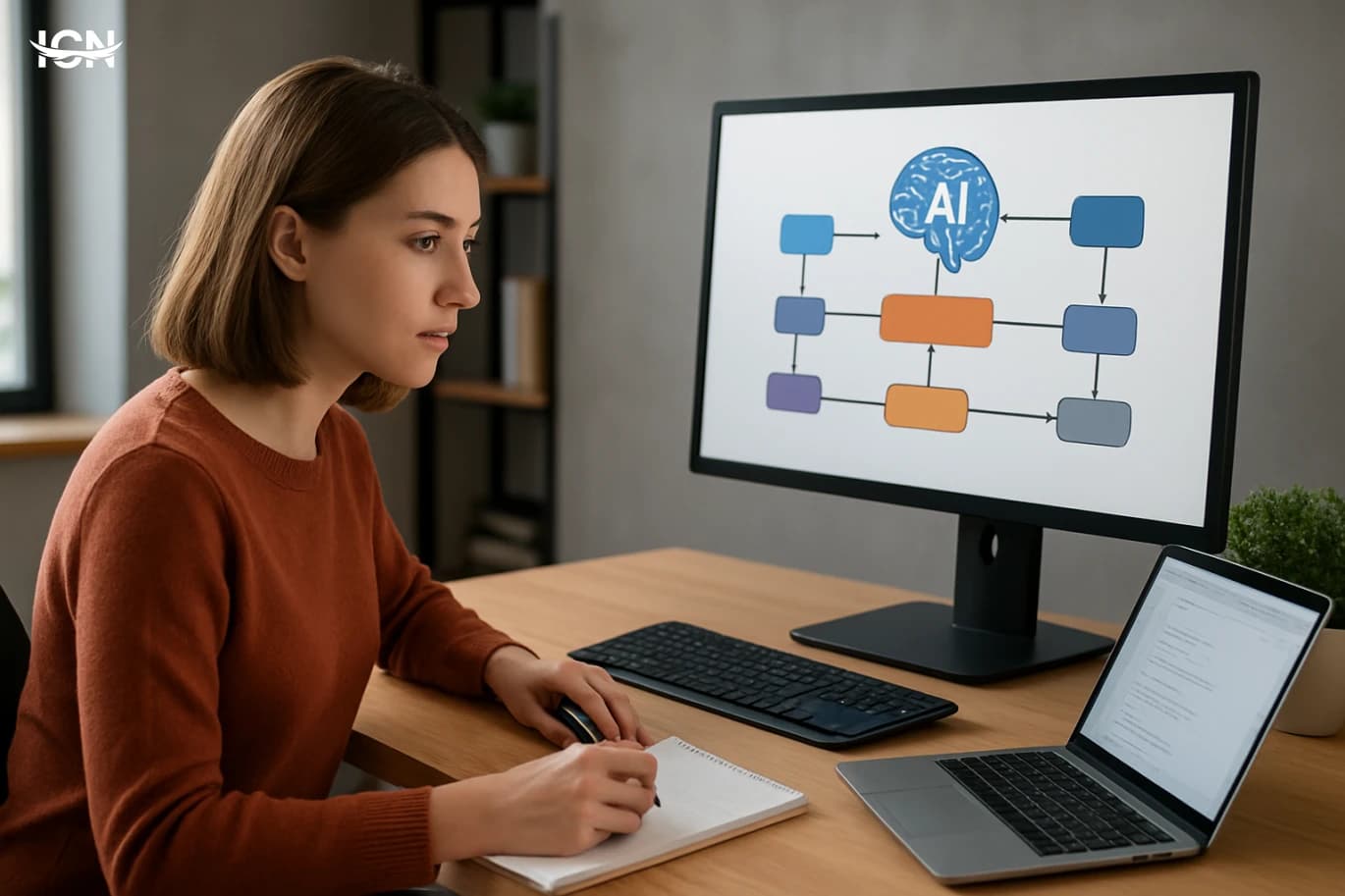
Personal AI tools have moved from novelty to daily utility because they reduce time spent on repetitive, low-value tasks. A personal AI workflow is not a single app; it is a small system you design to capture information, transform it, and deliver results in a consistent format. The value comes from reliability: the same steps produce the same outputs, whether you are summarizing meeting notes, drafting emails, organizing research, or preparing weekly reports. This topic matters now because most people already use multiple tools—email, calendars, cloud drives, chat, and spreadsheets—but the handoffs between them are manual. Copying text, renaming files, and reformatting updates are hidden time costs. A well-designed workflow uses no-code automation and AI assistants to connect these tools, enforce a template, and keep a record of what was done. The goal is not to replace judgment; it is to standardize the busywork so you can focus on decisions and quality control.
Building a Personal AI Workflow Without Coding
Personal AI workflows are no longer limited to engineers. In 2026, most professionals juggle email, documents, meetings, and repetitive admin tasks across multiple apps. A practical AI workflow connects those tools so routine work happens with fewer clicks and fewer missed steps. The goal is not to “use AI everywhere,” but to remove bottlenecks: summarizing long threads, extracting action items, standardizing notes, and turning scattered inputs into a consistent system. This topic matters because the volume of information keeps rising while attention stays fixed. A well-designed workflow reduces context switching and makes outcomes more predictable. It also improves quality by applying the same checklist each time: the same meeting template, the same naming rules, the same approval steps. For individuals and small teams, this can deliver the kind of operational discipline that used to require dedicated operations staff. The key is to treat AI as a component inside a process, not a standalone chatbot. When AI is paired with triggers, forms, and storage rules, it becomes reliable. When it is used ad hoc, results vary and the work often returns later as rework. This article focuses on building a no-code workflow that is specific, measurable, and easy to maintain.
Building a Reliable Passwordless Login Stack
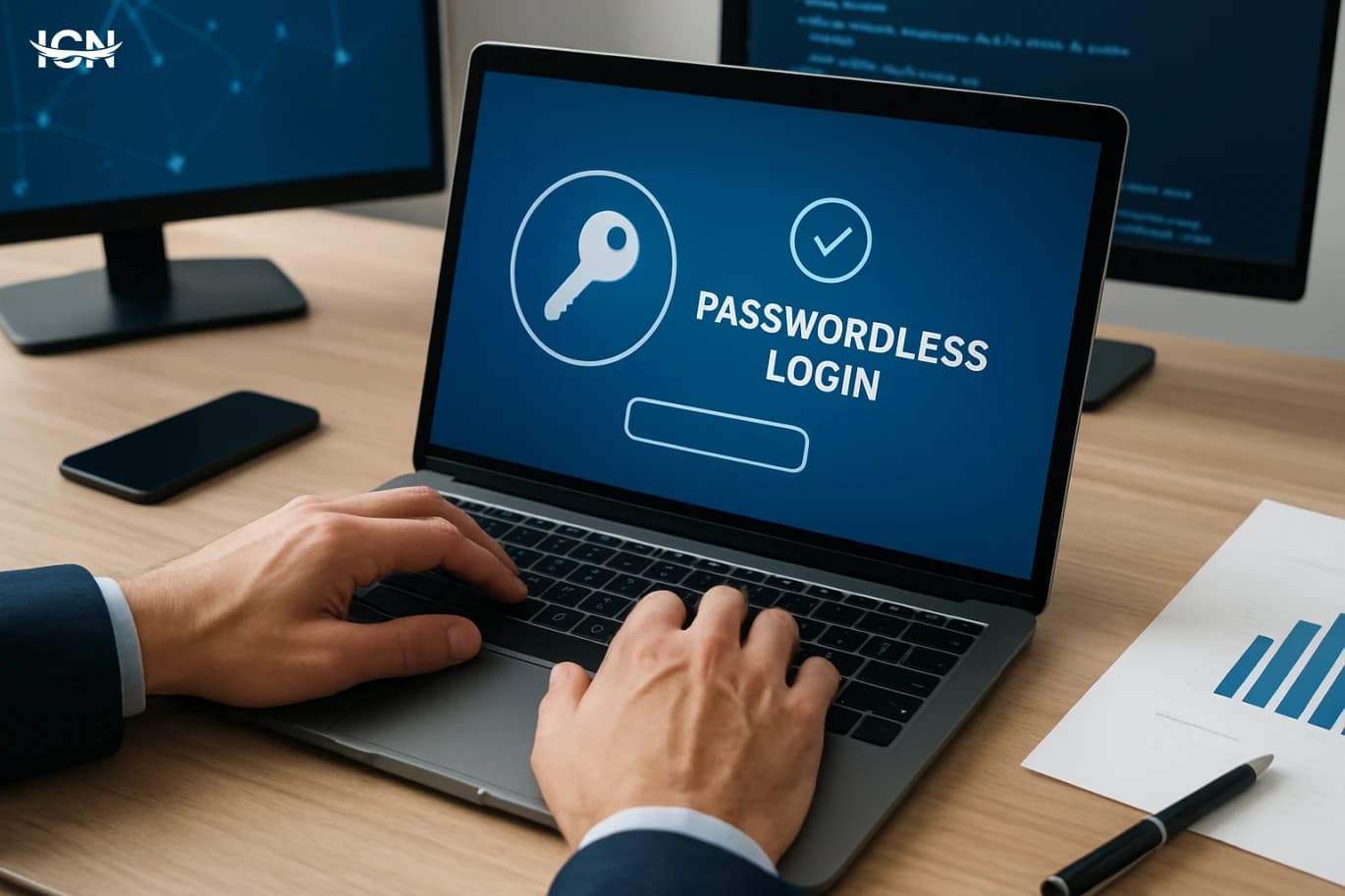
Passwordless login has moved from a “nice-to-have” to a practical baseline for many products because it reduces account takeovers, lowers support costs, and improves sign-in completion rates. Traditional passwords fail in predictable ways: users reuse them, choose weak phrases, forget them, and fall into phishing traps. Each of those failure modes creates operational work, from reset tickets to fraud reviews. Passwordless approaches shift the burden away from memorization and toward device-based proof, cryptographic keys, or one-time links that expire quickly. The business case is not only security. Teams often see fewer abandoned logins when they remove the friction of password rules and reset flows. Customer support benefits because “I can’t log in” becomes less frequent and easier to resolve. For internal tools, passwordless can reduce the risk of credential stuffing and simplify onboarding for contractors. The key is to treat passwordless as a stack: user experience, identity proofing, recovery, and monitoring must be designed together, not bolted on as a single feature.
A Practical Guide to Passwordless Sign-In
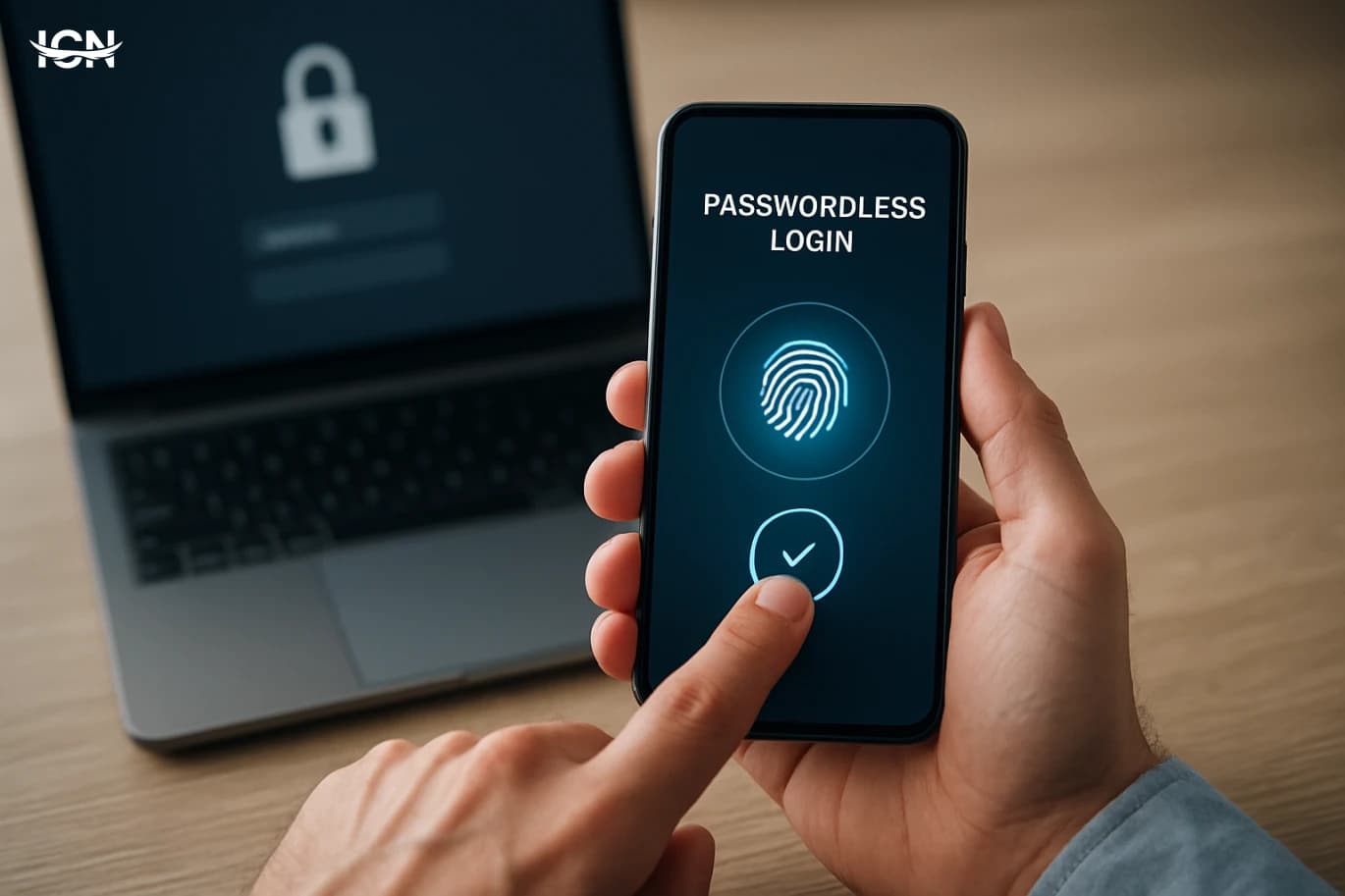
Passwordless sign-in is moving from a niche security feature to a mainstream expectation across consumer apps and workplace tools. The driver is simple: passwords are easy to reuse, hard to remember, and costly to support. Help desks spend significant time on resets, while users often fall back on predictable patterns that are vulnerable to automated guessing and credential stuffing. Passwordless methods reduce those weak points by shifting authentication to something you have (a device) and something you are or can do (a biometric check or a local PIN), without sending a reusable secret over the internet. The biggest change is standardization. Industry efforts such as passkeys, built on FIDO2 and WebAuthn, allow a phone or computer to create a cryptographic credential tied to a specific website or app. Instead of typing a password, you approve a sign-in prompt with Face ID, fingerprint, or a device PIN. The server receives a signed proof, not a secret it can store and later leak. For organizations, this can mean fewer account takeovers, fewer reset tickets, and a smoother onboarding experience, especially when combined with single sign-on and device management.
Practical Passwordless Login for Small Teams
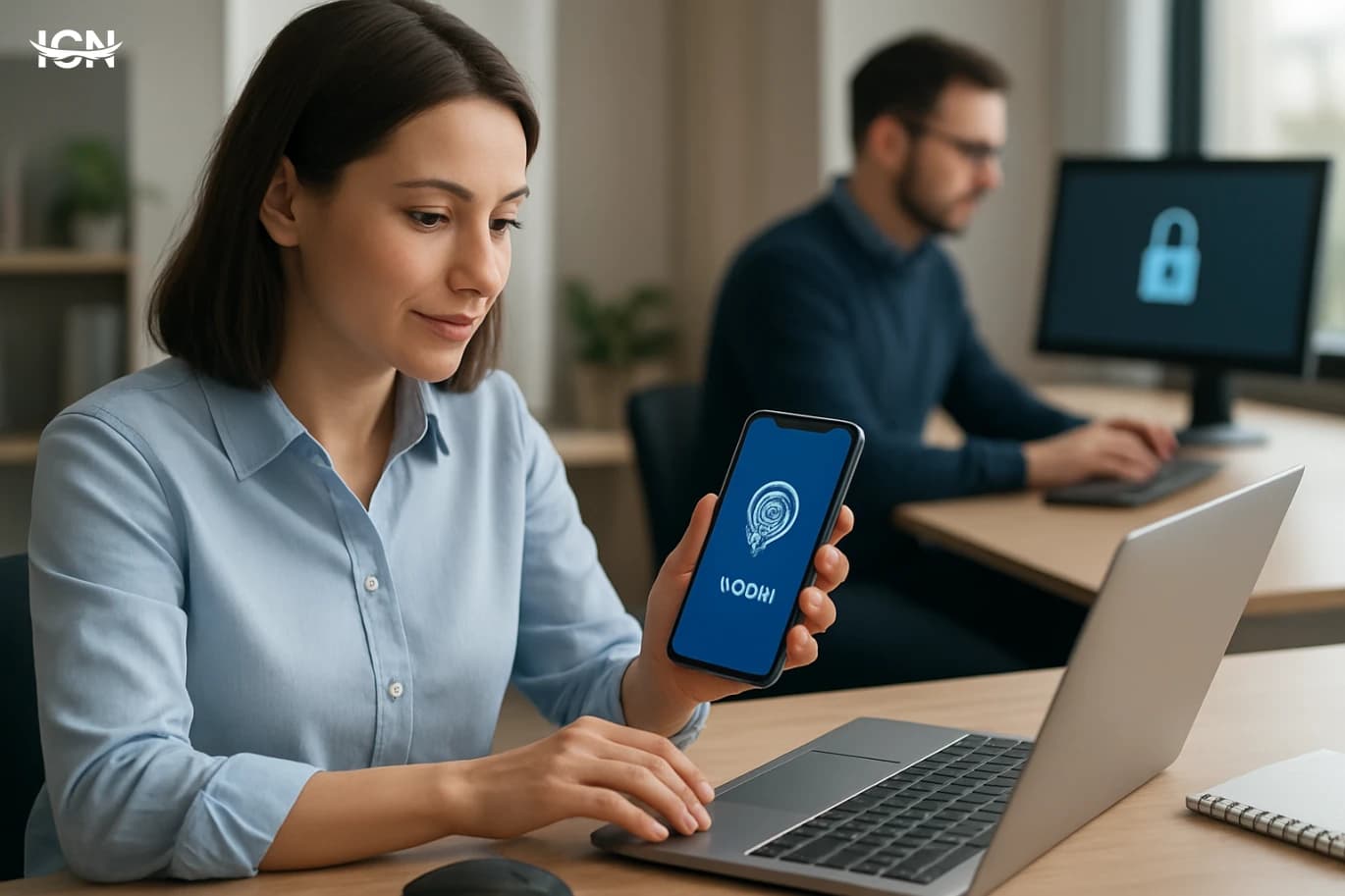
Small teams are increasingly targeted by automated credential-stuffing and phishing because they often reuse passwords across tools like email, project trackers, and cloud storage. Passwordless login reduces the value of stolen passwords by removing the shared secret entirely, replacing it with device-based cryptographic proof or time-limited links. This shift is no longer limited to large enterprises: major identity providers and SaaS platforms now offer passkeys, magic links, and authenticator-based sign-in as standard options. For a team of 10–100 people, the practical benefit is fewer account takeovers, fewer password reset tickets, and faster onboarding for new hires and contractors. Passwordless also improves day-to-day reliability. People forget passwords, store them in insecure notes, or create predictable patterns. Even with a password manager, the login flow can break when devices change or when browser extensions are blocked. Passkeys and authenticator prompts typically work across devices and can be backed up securely, while still requiring user presence. The key is to choose an approach that matches your team’s mix of devices, remote work habits, and compliance needs, then roll it out in a controlled way rather than flipping a switch overnight.
Lithium-Ion Batteries
History and Development Lithium-ion batteries are one of the most significant technological innovations in the energy sector. They were first introduced in the 1990s and were mainly used in mobile phones and laptops. Since then, they have seen significant improvements in energy efficiency and capacity. With the increasing reliance on portable devices, lithium-ion batteries have become the first choice for many applications. Lithium-ion battery structure Lithium-ion batteries are made up of specific electrical materials that allow for efficient energy storage and conversion. They consist of an anode, a cathode, and an electrolyte, which facilitates the movement of lithium ions between the anode and cathode during charging and discharging. This technology has revolutionized how electronic devices and renewable energy are used.
instax mini
instax mini
The date of the development of the Instax Mini camera is the Instax Mini camera among the most prominent innovations in the world of photography. It was first launched in 1998, and was achieved widely thanks to its classic design and ease of use. With the passage of years, the camera witnessed several updates that improved the quality of images and provided various options for users. What distinguishes the Instax Mini camera, the Instax Mini camera is its ability to print images immediately, making it a popular choice for occasions and social events. In addition, it contains a variety of settings that allow users to customize their experience and add personal touches to their photos. Its attractive and lightweight design also makes it comfortable in pregnancy, making it easier to capture happy moments wherever they are.
By clicking the SUBSCRIBE button, you are agreeing to our Privacy & Cookie Policy If you want to unsubsribe the marketing email, please proceed to our privacy center.
© 2005-2026 ICN. All Rights Reserved.