



Building a Smooth Gaming Setup on a Budget
- What “smooth” really means in games
- Set a realistic budget and priorities
- Choosing parts that maximize frame stability
- Monitor and settings that deliver the biggest gains
- Network and peripherals for responsive play
What “smooth” really means in games
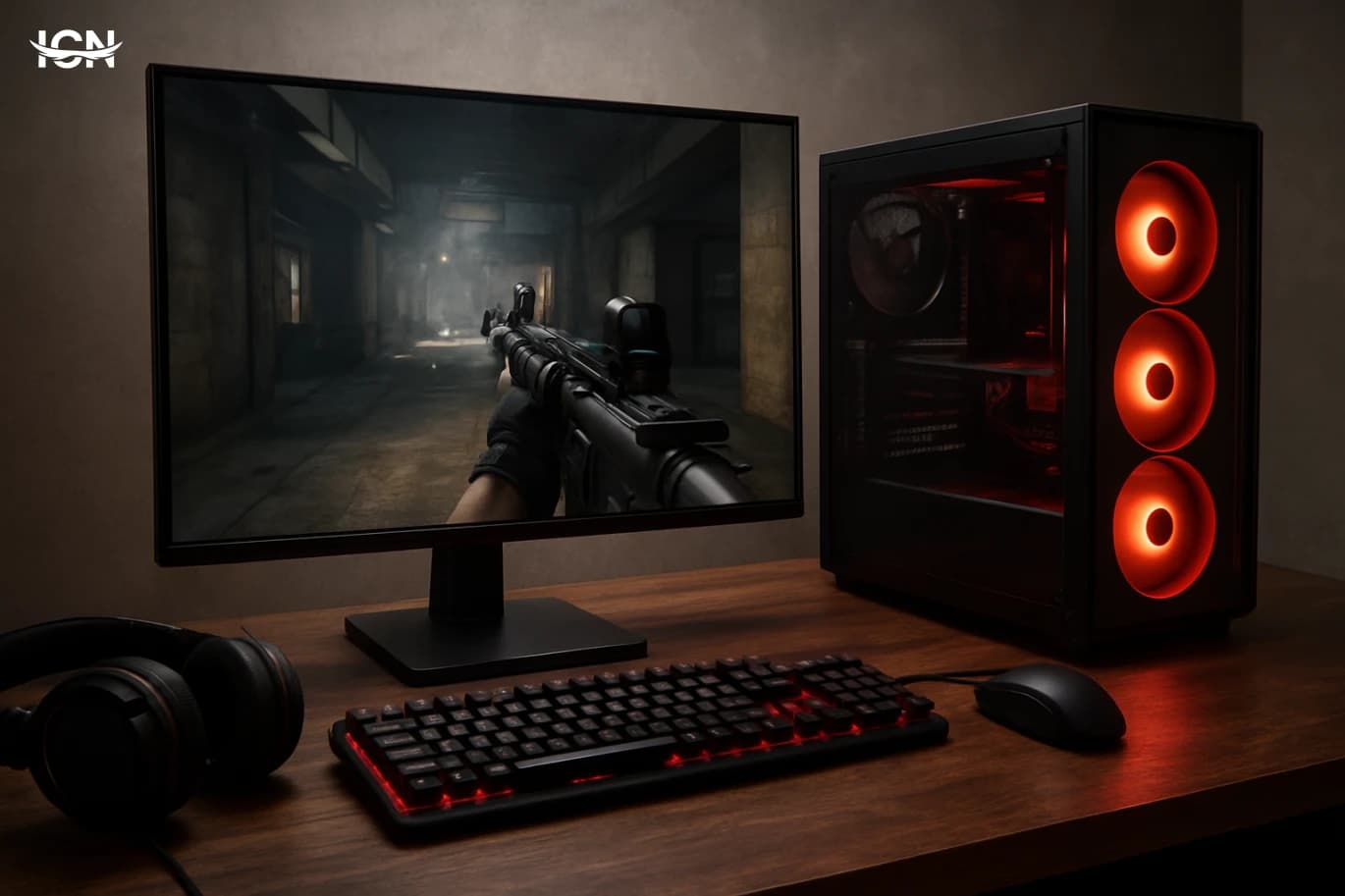
A smooth gaming experience is not just “high FPS.” It is the combination of stable frame pacing, low input delay, and consistent performance during heavy scenes. Many players chase a big average frame rate number, but stutter and sudden drops are what make a game feel rough. Frame pacing matters because uneven delivery of frames creates micro-stutter even when the counter looks fine. Input delay matters because it affects aiming, timing, and overall control, especially in competitive shooters, fighting games, and fast action titles. Before buying anything, define your target: 1080p at 60 fps stable, 1080p at 120–144 fps for esports, or 1440p at 60–90 fps for single-player detail. Your target should match the games you actually play and the monitor you will use. A budget setup can feel premium if it hits a realistic target consistently. The goal is to spend money where it reduces stutter and improves responsiveness, not where it only increases peak numbers in benchmarks.
Set a realistic budget and priorities
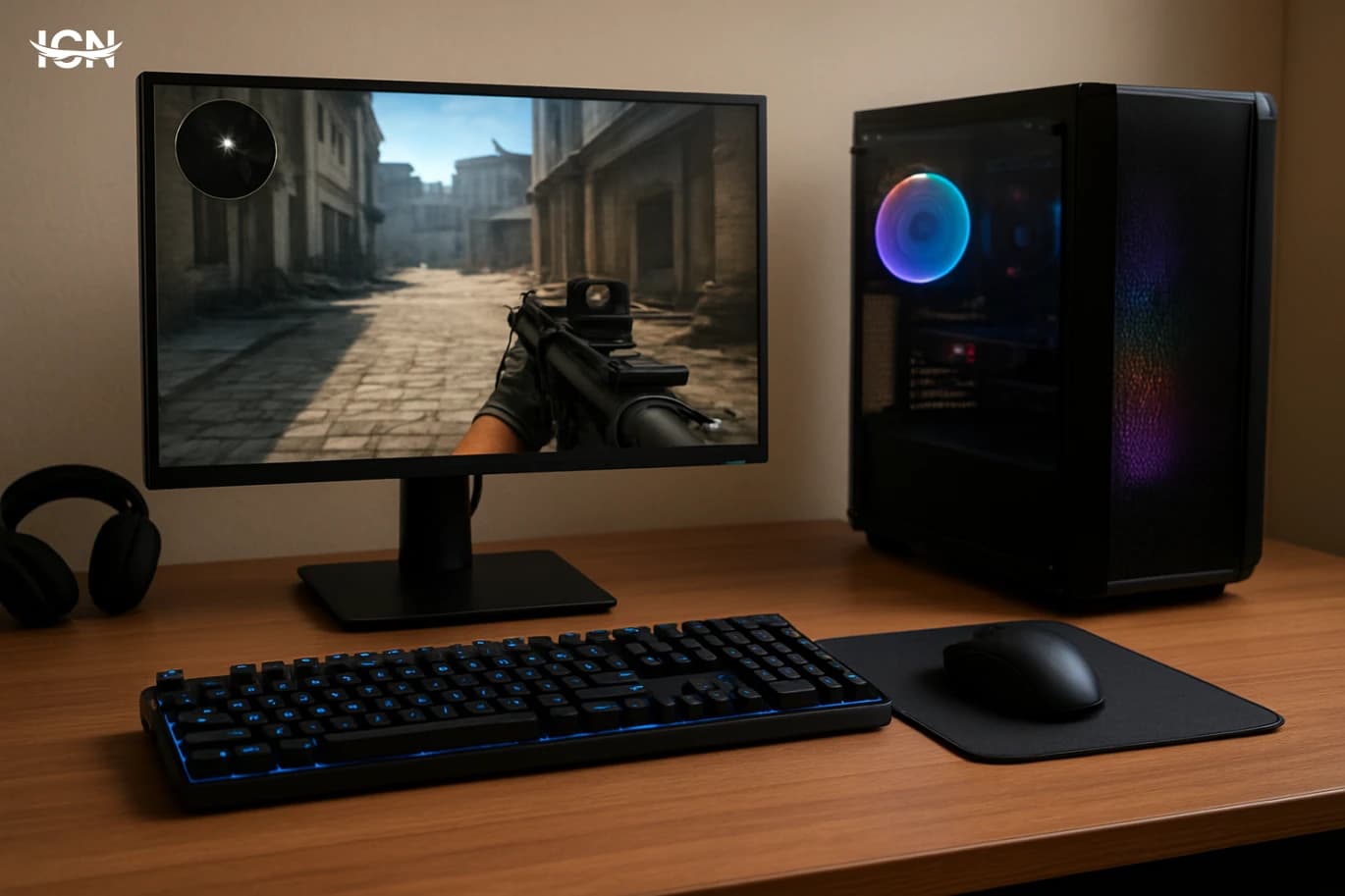
Start by listing what you already have: monitor resolution and refresh rate, keyboard and mouse, headset, and whether you need Wi‑Fi or Bluetooth. Then split the budget into performance-critical parts and quality-of-life parts. For most budget builds, the GPU and CPU decide the ceiling, but RAM capacity, storage type, and cooling decide how stable the system feels day to day. A practical priority order for smoothness is: GPU (for modern 3D games), CPU (for high refresh esports and simulation), 16–32 GB RAM, NVMe SSD for game loading and streaming assets, and a reliable power supply. Avoid spending too much on cosmetics, oversized cases, or premium RGB when the same money could move you up a GPU tier or add an SSD. If you play mostly competitive titles at low settings, prioritize CPU and a high-refresh monitor. If you play visually heavy single-player games, prioritize GPU and VRAM. Also plan for hidden costs: a Windows license if needed, a decent controller for certain genres, and a surge protector. Budget builds fail when the plan ignores these basics and forces compromises later.
Choosing parts that maximize frame stability
For the GPU, focus on the performance level that matches your target resolution and settings, but also consider VRAM. Modern games can exceed 8 GB at higher textures, and running out of VRAM can cause hitching. If you are buying used, check for warranty transfer, ask for stress-test results, and inspect for dust buildup and fan noise. For the CPU, do not overbuy cores you will not use; many games still benefit more from strong per-core performance and good boost behavior than from very high core counts. RAM should be at least 16 GB for current PC gaming, with 32 GB becoming a comfort upgrade for multitasking, modded games, and heavy open-world titles. Two sticks (dual channel) typically perform better than one. Storage is a major contributor to “feel”: an NVMe SSD reduces load times and can reduce streaming stutter in open-world games. A budget-friendly approach is a smaller NVMe for the operating system and main games, plus a larger SATA SSD for the rest. Do not treat the power supply as optional. A reputable 80 Plus rated unit with enough headroom improves stability and protects components. Cooling matters too: a basic tower air cooler and a case with clear airflow can prevent thermal throttling, which often looks like random performance drops. The best budget build is the one that stays cool, quiet, and consistent.
Monitor and settings that deliver the biggest gains
A monitor can make a budget system feel dramatically better. If you play esports titles, a 1080p 144 Hz monitor often provides more perceived smoothness than pushing higher resolution on a 60 Hz panel. For single-player games, 1440p at 75–165 Hz can be a balanced choice if the GPU can sustain it. Adaptive sync (FreeSync or G‑Sync Compatible) helps reduce tearing and makes frame drops less noticeable, which is valuable on midrange hardware. In-game settings are where you “buy” performance for free. Shadows, volumetric effects, and ray tracing are expensive; texture quality is mostly VRAM-dependent; anti-aliasing and ambient occlusion can be tuned. A smart approach is to start with a medium preset, then raise textures if VRAM allows, and lower shadows and volumetrics to stabilize frame times. Use built-in benchmarks when available, but also test real gameplay areas that cause drops. Upscaling features such as DLSS, FSR, or XeSS can be a budget player’s best tool, especially at 1440p. They can deliver a large frame rate boost with acceptable image quality when configured correctly. The key is to prioritize consistency: a stable 90 fps feels better than a 120 fps average that swings wildly.
Network and peripherals for responsive play
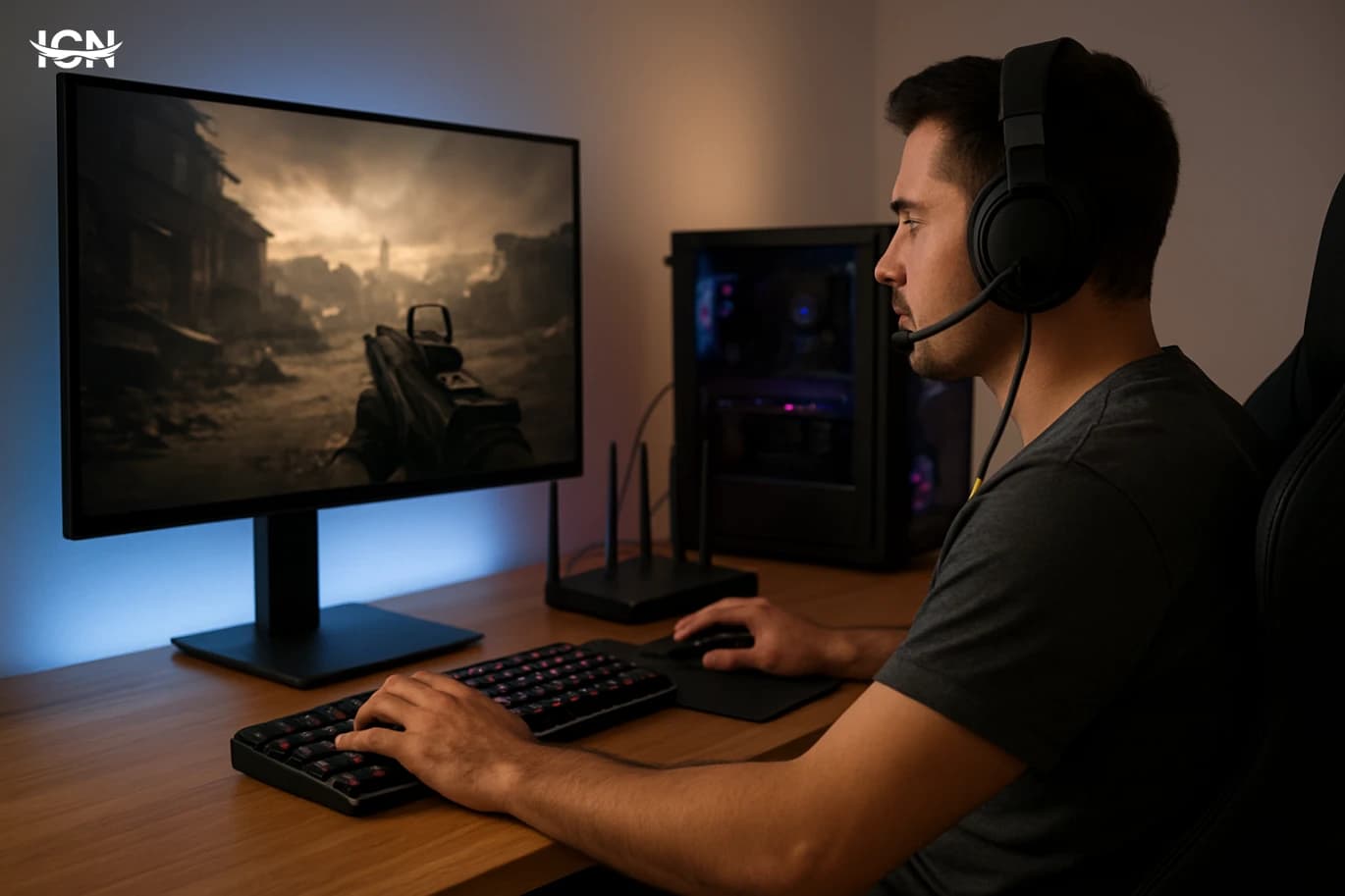
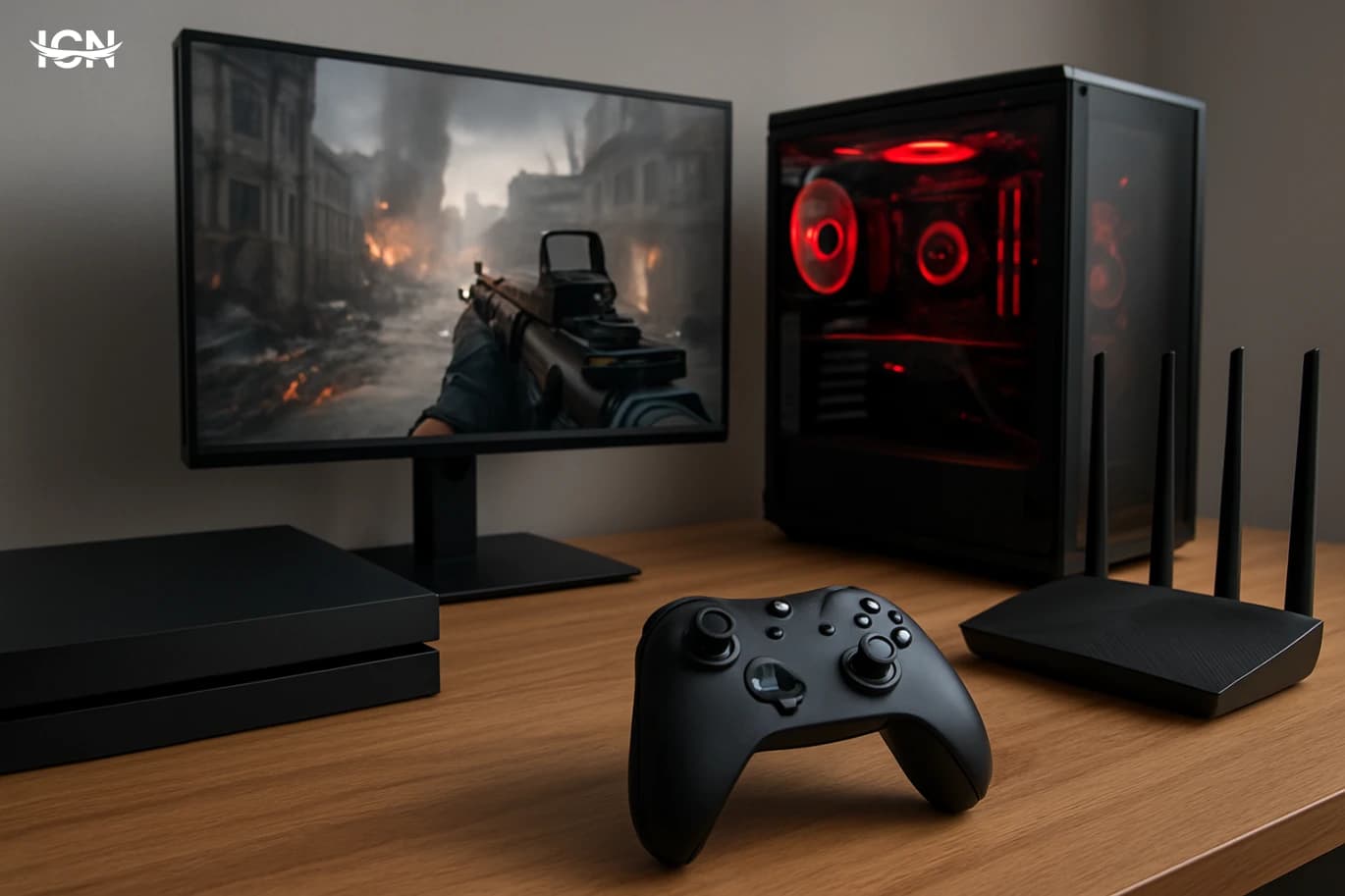
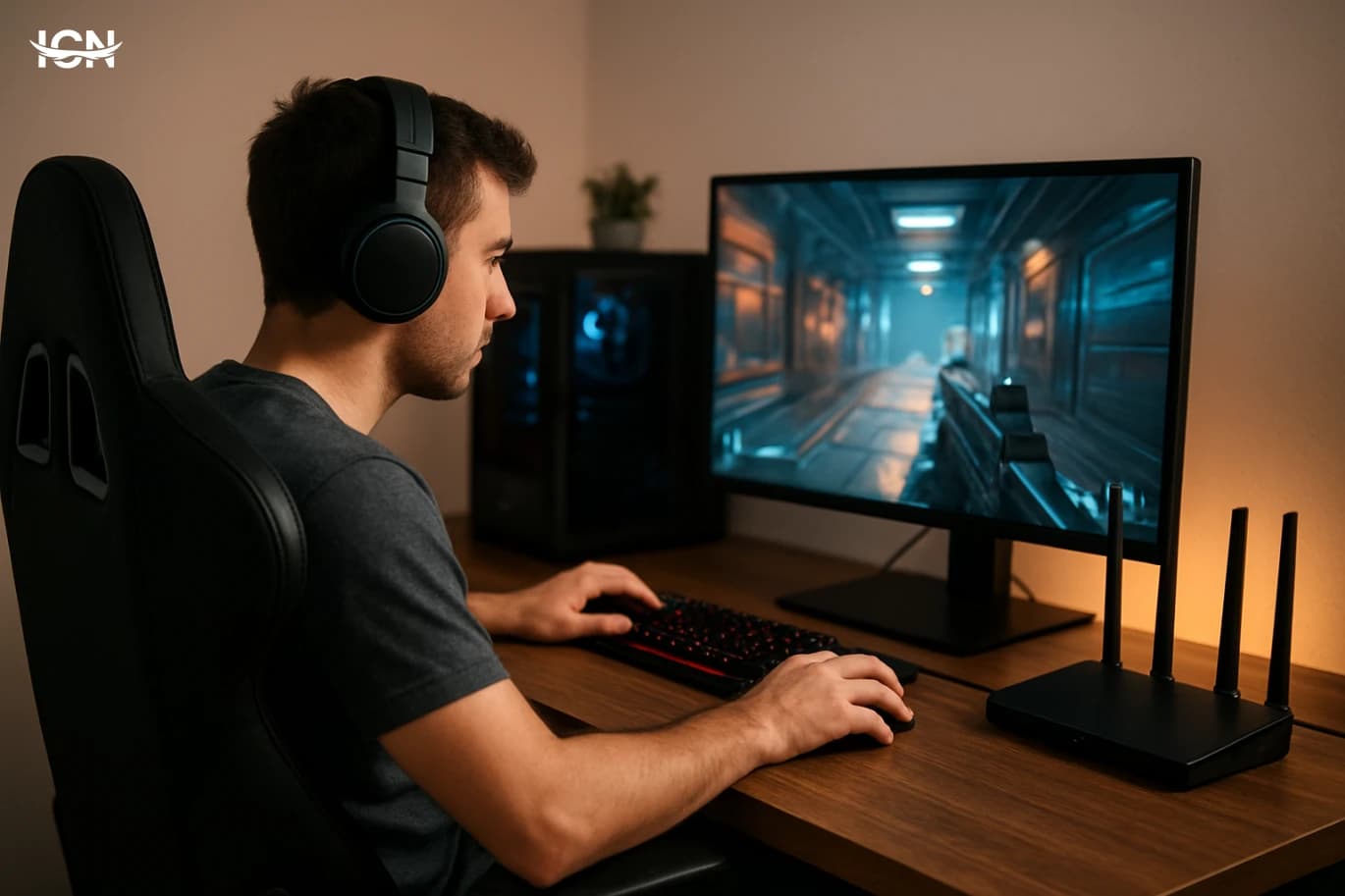
Smoothness is also about responsiveness outside the GPU. A stable internet connection reduces lag spikes in online games. If possible, use Ethernet instead of Wi‑Fi, especially in crowded apartments or homes with many devices. If you must use Wi‑Fi, place the router higher, reduce interference, and consider a modern Wi‑Fi adapter that supports current standards. Basic router settings like quality-of-service can help prioritize gaming traffic, but the biggest wins usually come from stability and signal quality. Peripherals matter more than many budget builders expect. A consistent mouse sensor and a comfortable shape improve aim and reduce fatigue. A keyboard with reliable switches and low chatter helps in rhythm and competitive games. Audio is not just immersion; clear positional sound can be an advantage, so a decent headset or speakers are worth planning for. Finally, keep the system clean and updated. GPU drivers, chipset drivers, and game patches can fix stutter issues. Disable unnecessary startup apps, keep enough free SSD space for caching, and monitor temperatures. These steps cost nothing and often deliver the “smooth” feeling people try to buy with hardware.